THE STUDIO NOTEBOOK
How to Export an Embroidery Design as a DST File
Prepare your lettering, choose the export scope, and save a Tajima DST machine file.
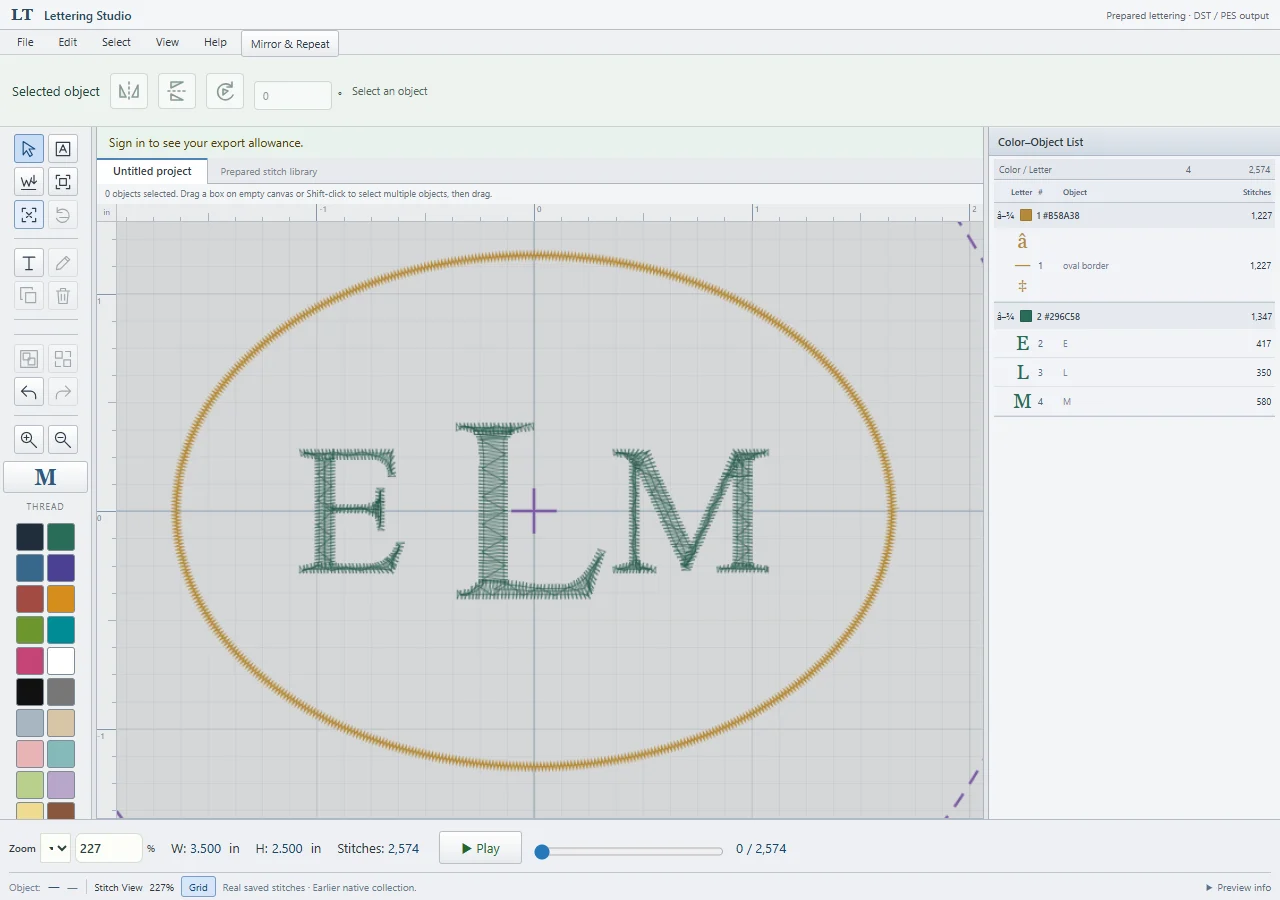
Finish your arrangement
Check the text, size, spacing, and object placement. Save a project copy so you can edit it later; a DST file is not a replacement for your editable project.
Open Save embroidery as
Use the embroidery Save As action. Choose Tajima DST (.dst). Select Entire design to include everything, or Selected objects if you only want your selection.
Prepare the file
Confirm the export. The app assembles the stitches and shows progress. Your account must have exports remaining; the app displays your allowance.
Save the prepared output
When Save As becomes available, choose it and select your folder. In browsers without a file picker, the download follows the browser’s download settings. A prepared file is not proof that it was saved to disk.
Transfer and test
Open the file in software or a machine that supports DST. Confirm its dimensions, color order, and hoop. DST does not reliably preserve the intended thread palette, so use your design as a color reference. Test on scrap fabric first.